
Guide · WordPress
WordPress SEO Without the Headache: A Practical Checklist
A practical WordPress SEO checklist for real websites. Learn where titles, descriptions, canonicals, headings, sitemaps and structured data fit — and how Fridica helps you find what deserves attention.
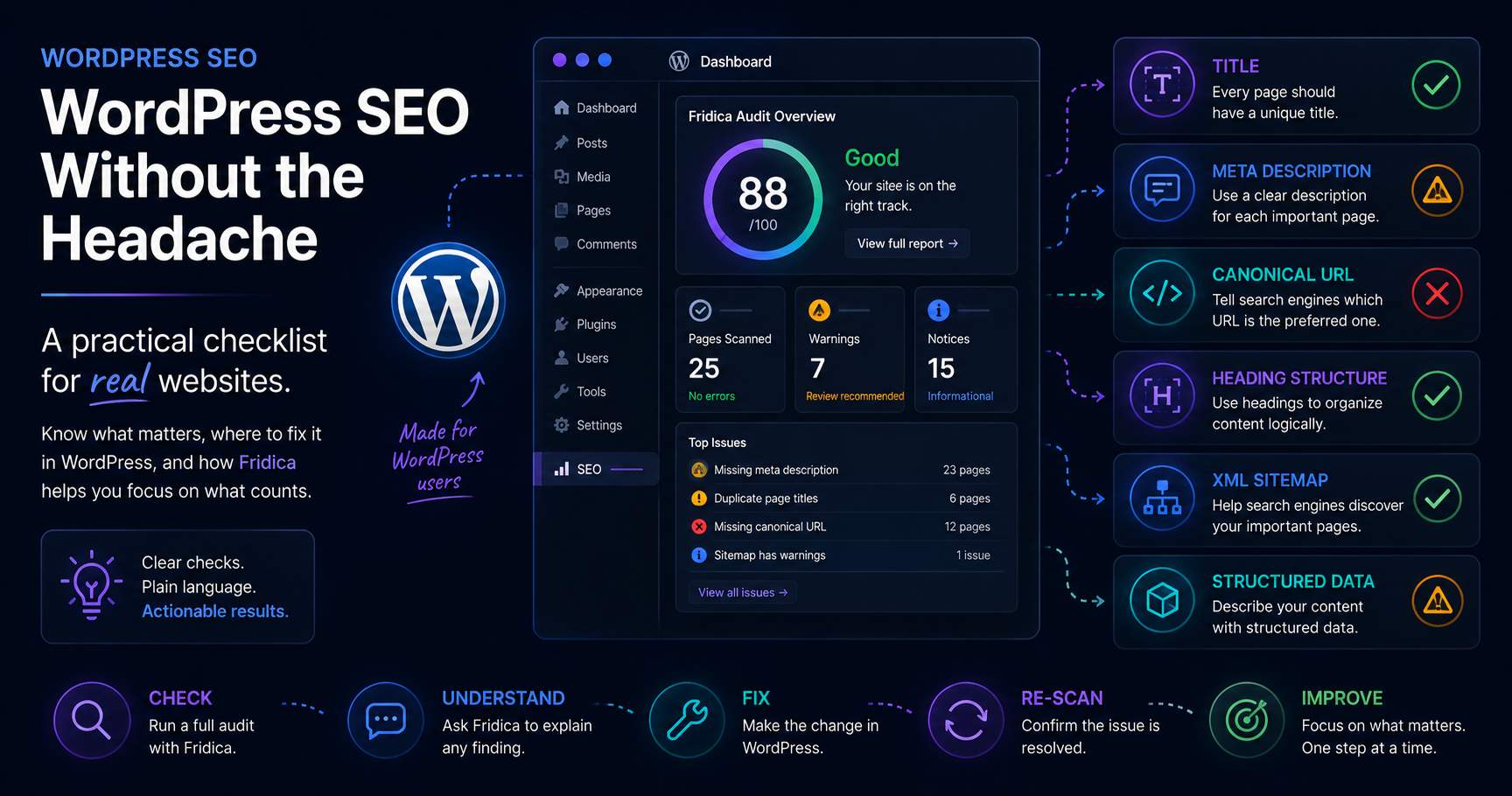
WordPress can make building a website surprisingly easy.
SEO is where things sometimes become less friendly.
You install a theme, add a plugin, write a few pages, publish some posts and suddenly someone tells you that you need:
- meta descriptions;
- canonical URLs;
- structured data;
- XML sitemaps;
- proper heading hierarchy;
- descriptive links;
- robots rules;
- and approximately seventeen other things with names that sound much more frightening than they really are.
The good news is that most WordPress SEO problems are not mysterious.
They are usually a collection of small, understandable signals that can be checked one by one.
That is also how Fridica approaches them.
Instead of asking whether your WordPress website is somehow “good at SEO,” Fridica looks at observable signals and tells you what was actually detected.
This guide will help you understand what those signals mean and where you can usually fix them in WordPress.
First: you do not need to become an SEO engineer
If you run a small business website, blog, portfolio, organization website, or client project, you probably do not want to spend your afternoon reading search-engine specifications.
Fair enough.
The goal is not to memorize every possible SEO rule.
A much more useful workflow is:
check → understand → fix what matters → check again.
That is exactly where Fridica fits.
You can audit the website, see which pages are affected, ask Fridica to explain an unfamiliar finding, make the change in WordPress, and then re-scan the site.
1. Start with the page title
Every important page should have a useful title.
In HTML, it appears inside the <title> element.
In WordPress, you normally do not edit this HTML directly.
Your theme and SEO plugin usually generate it from the page title, post title, site name, and SEO settings.
A useful title should help someone understand what the page is about without opening it first.
Compare:
Services
with:
WordPress Development and Website Maintenance
The second title carries considerably more meaning.
What Fridica looks for
Fridica can detect whether a usable title exists and whether multiple audited pages appear to share the same normalized title.
If several different pages all have the same title, it becomes harder to distinguish them.
That does not mean every title has to be wildly creative.
It simply means each important page should describe that page.
Where to fix it in WordPress
Depending on your setup, you may edit the title through:
- the WordPress page or post title;
- Yoast SEO;
- Rank Math;
- another SEO plugin;
- theme-specific SEO settings.
The exact screen may vary, but the idea remains the same.
2. Give important pages a useful meta description
A meta description is a short description of the page placed in the page markup.
It commonly looks like this:
<meta name="description"
      content="A concise description of the page.">
Search engines may use it when presenting a search result, although they can choose different text when they believe another passage is more relevant.
So a meta description is not a magic ranking button.
It is simply a useful opportunity to describe the page clearly.
A simple way to write one
Ask yourself:
If someone saw only this sentence and the page title, would they understand what they will find after clicking?
If the answer is yes, you are probably moving in the right direction.
You do not need to stuff keywords into it.
You do not need to write like a billboard.
Just describe the page.
What Fridica does
If Fridica finds that important audited pages do not expose a usable meta description, it can report the issue and show how broadly it appears.
For example:
23 of 25 scanned pages
is much more useful than simply saying:
“Meta descriptions are missing.”
You immediately know whether you are dealing with one forgotten page or a site-wide configuration problem.
3. Use headings to organize ideas, not just to make text bigger
WordPress makes headings easy to add.
The Gutenberg editor gives you H2, H3, H4 and other heading levels directly in the Heading block.
The important part is choosing them for structure rather than appearance.
Think of your page as a book:
- H1 is the main title;
- H2 introduces major sections;
- H3 introduces sections inside an H2;
- H4 goes another level deeper when necessary.
You usually would not organize a book as:
Book title → subsection of a chapter → chapter
The same logic applies to a web page.
Why Fridica reports heading hierarchy
A heading structure such as:
H1 → H3
may indicate that a structural level was skipped.
That does not automatically destroy SEO.
It does make the document hierarchy less explicit.
Fridica reports the observable structure so that you can decide whether it reflects the actual organization of the content.
4. Check your canonical URLs
Canonical URLs sound complicated until you understand what they are trying to communicate.
A canonical link essentially says:
“If several URLs represent this content, this is the preferred public URL.”
It appears in markup such as:
<link rel="canonical"
      href="https://example.com/my-page/">
WordPress SEO plugins commonly generate this automatically.
That is why a site-wide missing canonical warning is often a clue that something in the template or SEO configuration deserves attention.
Do not panic if Fridica reports it
A warning is not a diagnosis of disaster.
Look at the scope.
If one page is affected, inspect that page.
If every page is affected, investigate the common template, theme, or SEO plugin configuration.
That is one reason Fridica shows affected-page counts instead of treating every warning as an isolated event.
5. Make links useful to humans
Links such as:
click here
or:
read more
may make perfect sense when you are looking at the surrounding paragraph.
Outside that context, however, they communicate very little.
Compare:
Read more
with:
Read the WordPress security guide
The second link explains what the destination is.
That is useful for users, accessibility, search understanding, and source clarity.
Where WordPress can surprise you
Sometimes the problem is not in the article itself.
A theme may automatically generate:
- “Read more” archive links;
- generic buttons;
- navigation labels;
- repeated card links.
If Fridica reports the same link-text issue across many pages, look for a shared component before manually editing twenty-five pages.
That can save a lot of unnecessary work.
6. Let WordPress handle your sitemap — but check the result
Modern WordPress installations can expose XML sitemap functionality, and many SEO plugins provide their own sitemap implementation.
You usually do not need to manually write XML.
But it is still useful to know whether the public sitemap can actually be found and read.
Fridica’s Discoverability section can tell you what it observed.
For example:
robots.txt: Readable · Sitemap: Found
That is a useful technical observation.
It is not a guarantee that every URL in the sitemap is indexed.
7. Do not accidentally hide the whole website
WordPress has a setting under:
Settings → Reading → Discourage search engines from indexing this site
This setting is useful while developing a website.
The problem starts when a staging configuration follows you into production.
Suddenly you have a beautiful website that politely asks search systems to stay away.
Not ideal.
Fridica checks observable robots and indexability signals so that broad blocking or noindex directives are easier to notice.
8. Structured data: useful when it describes something real
Structured data can explicitly describe entities and content in machine-readable form.
For example, a page may describe:
- an Organization;
- a Person;
- an Article;
- a BlogPosting;
- other supported schema types.
Many WordPress SEO plugins generate some structured data automatically.
This is helpful, but “structured data exists” is not the same as “structured data is meaningful.”
Fridica therefore looks at observable details such as identity and attribution signals where they are applicable.
For example: who published the article?
An Article can identify its publisher.
A Person or Organization can expose official identity references.
An Article can identify which page it describes.
These are small signals, but together they make the source more explicit.
Fridica groups several of these ideas under GEO Structured Source-Readiness.
9. Do not install five SEO plugins to fix five warnings
This deserves its own section because WordPress makes plugins wonderfully easy to install.
Sometimes too easy.
If Fridica reports a missing meta description, the solution is probably not:
Install another SEO plugin.
If you already have one SEO plugin, first inspect its configuration.
Running multiple plugins that attempt to control titles, canonical URLs, schema, and sitemaps can create conflicts that are harder to understand than the original warning.
Fix the cause, not the number in the plugin directory.
10. A high score does not mean “do nothing”
Imagine your WordPress website receives:
SEO Readiness: 93/100
That sounds good — and it may indeed mean that most applicable checks passed.
But perhaps every scanned page is missing a canonical URL.
Those two facts can exist at the same time.
Fridica scores applicable weighted checks. It does not simply subtract one point for every affected page.
That is why you should read:
- the score;
- the warning severity;
- the number of affected pages;
- the actual evidence;
together.
11. Ask Fridica before you start changing things
This is where the AI layer becomes useful.
Suppose the audit says:
Missing canonical URL — 12 of 12 pages affected
You can ask:
What should I fix first?
or:
Why does this matter if my SEO score is still high?
Fridica receives the deterministic audit context and explains what the result means.
It does not crawl the website again or invent a new SEO score.
That separation is deliberate:
The audit detects. Fridica explains. You decide what to change.
12. Re-scan after the fix
One of the nicest moments in website work is fixing something and confirming that it is actually fixed.
Do not rely only on:
“I changed the setting, so it must be fine now.”
Re-run the audit.
Fridica can compare repeated audits and distinguish findings such as:
- Resolved — previously present and no longer detected;
- Still present — the problem remains;
- New — a finding appeared in the newer audit;
- Not re-evaluated — the newer audit did not have enough comparable evidence to claim resolution.
That gives you something more useful than a one-time checklist:
a way to verify progress.
A simple WordPress SEO routine
If all of this feels like a lot, keep the routine simple.
- Publish useful content.
- Give important pages clear titles and descriptions.
- Use headings to organize the page logically.
- Keep canonical, sitemap, and indexing settings healthy.
- Use descriptive links.
- Make structured identity and attribution clear where appropriate.
- Run Fridica.
- Fix the important findings.
- Re-scan.
No magic.
No need to chase every SEO trick you see on social media.
Just improve the real signals one understandable step at a time.
And if WordPress still manages to surprise you...
It probably will.
That is part of the relationship.
The useful thing is that you do not have to guess where to start.
Run the audit, look at the evidence, and ask Fridica when a finding sounds like it was named by a committee of robots.
Then fix the website, not the buzzword.
Put this into practice
See what applies to your page.
Start with a one-page review, then run a full site audit when you are ready.